
Create Your Homepage and Content Pages with the Visual Editor
Watch the Video
Section titled “Watch the Video”Visual Editor Overview
Section titled “Visual Editor Overview”The visual editor has 2 parts:
- the block gallery available on the left
- the preview of the page on the right (in desktop and mobile versions)
The arrangement of blocks is modified by selecting a block and dragging it to the desired location in the left section (block and content management).
The arrangement of elements within a block is also customizable through simple drag and drop.
For each block in the page content, you can indicate whether it is visible in desktop version, mobile version, or both (from the block’s Appearance tab).
Then, access the block details in the left section to customize its content.
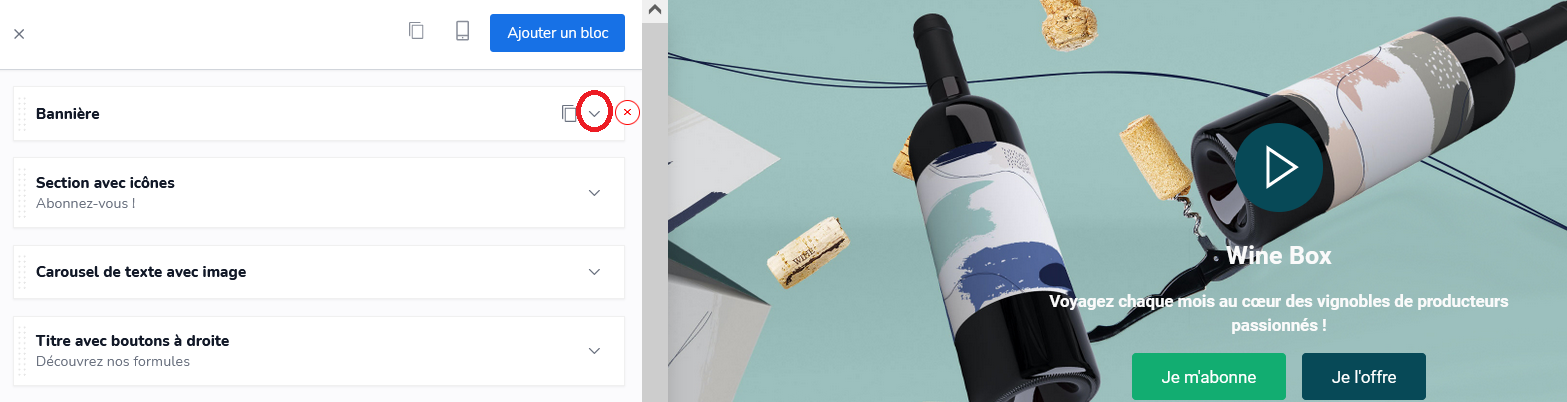
In the block content, you will find 2 tabs:
- Content to customize the block content
- Appearance (or Design) to customize text colors and background images, in desktop and mobile versions, and its padding
You also have the option to modify text and background colors by accessing a color palette.
Build your 10-color palette: exit the visual editor and click on My Sites in the left column then Edit (small pencil icon). In the Appearance tab, enter your HTML color codes in the second custom CSS window.
It is also in the CSS variables window that you can customize the colors of your buttons, footer, etc.
To help you define your colors, you can use the website Coolors.
A block can be deleted. A block can be copied. Then press CTRL+V to paste the block.
The content of a page can be copied. Then press Ctrl+V to paste its content.
Once your modifications are complete, save the changes made.
List of Available Blocks
Section titled “List of Available Blocks”html: to build your page content directly in html markdown: to build text pages, such as Terms and Conditions, Legal Notices columns banner section with icons section with title and icons newsletter testimonials steps centered block hoverable images reviews news call to action hover alternating content left/right text with image title with button on the right image carousel image gallery
products checklist statistics text carousel with images FAQ / Features