
Create your homepage and content pages with the visual editor
Watch the Video
Section titled “Watch the Video”The visual editor is available to customize your homepage, your free content pages, a free content area below your plans and gift cards, your unsubscription funnel, and the descriptions of your shop products.
You can create subfolders in your media gallery to organize your visuals. Make sure not to use spaces or special characters in the names assigned to your subfolders.
Your colors are customized from the CSS Variables field, and your body and title fonts from the Body Font and Title Font fields, when you go to Settings > Sites then Edit, in the Appearance for tab (followed by your site name).
Visual Editor Overview
Section titled “Visual Editor Overview”The visual editor has 2 parts:
- the block gallery available on the left
- the preview of the page on the right (in desktop and mobile versions)
The arrangement of blocks is modified by selecting a block and dragging it to the desired location in the left section (block and content management).
The arrangement of elements within a block is also customizable through simple drag and drop.
For each block in the page content, you can indicate whether it is visible in desktop version, mobile version, or both (from the block’s Appearance tab).
Then, access the block details in the left section to customize its content.
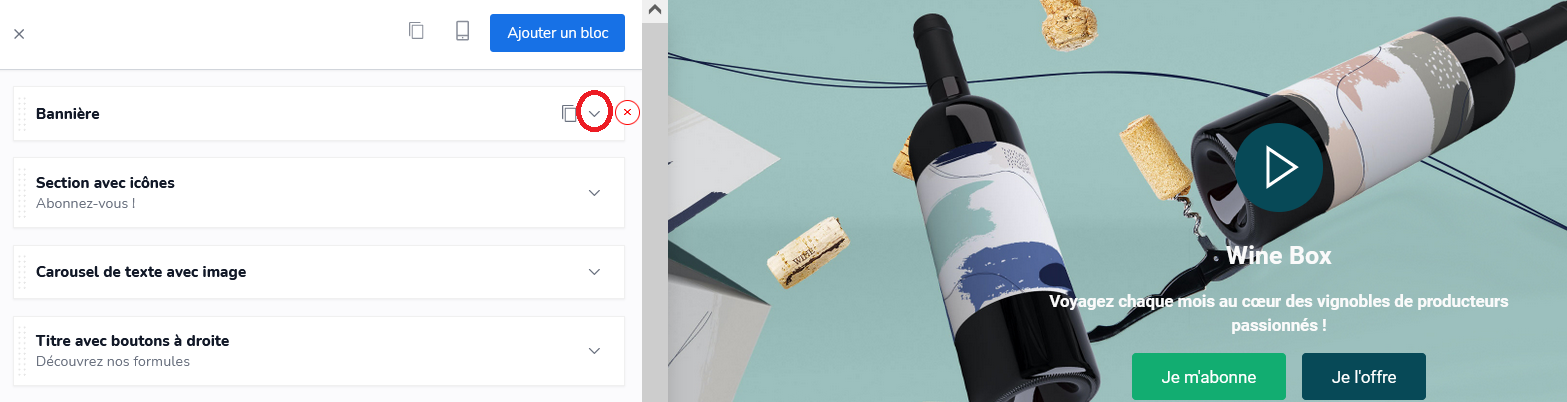
In the block content, you will find 2 tabs:
- Content to customize the block content
- Apparence (Appearance) to customize text colors and background images, in desktop and mobile versions, and its padding
You also have the option to modify text and background colors by accessing a color palette.
Build your color palette (variables --color1 to --color11): exit the visual editor and go to Settings > Sites then Edit (small pencil icon). In the Appearance for tab, enter your HTML color codes in the CSS Variables field.
It is also in the CSS variables window that you can customize the colors of your buttons, footer, etc.
To help you define your colors, you can use the website Coolors.
A block can be deleted. A block can be copied. Then press CTRL+V to paste the block.
The content of a page can be copied. Then press Ctrl+V to paste its content.
Once your modifications are complete, save the changes made.
List of Available Blocks
Section titled “List of Available Blocks”The block gallery sorts blocks by category. The names below are the ones shown in the editor, which are in French.
Spécial
- HTML: to build your page content directly in HTML
- Markdown: for text pages, such as terms and conditions or legal notices
- Texte formaté (formatted text)
- Texte encadré (boxed text)
- Bannière (banner): see Add a banner
- Newsletter: sign-up form for your newsletter
- Témoignages (testimonials)
- Etapes (steps)
- Étapes avec images (steps with images)
- Bloc centré (centered block)
- Avis google (Google reviews)
- Avis trustpilot (Trustpilot reviews)
- Call to action hover
- Texte avec image (text with image)
- Compte à rebours (countdown)
- Titre avec boutons à droite (title with buttons on the right)
- FAQ / Caractéristiques (FAQ / features)
- Caractéristiques détaillées (detailed features)
- Formule en avant avec cartes (featured plan with cards)
- Arguments commerciaux (selling points)
- Citation (quote)
- Table
- Checklist
- Sticky bar
- Vu à la tv (as seen on TV): featured video
Colonnes (columns)
- Colonnes (columns)
- Section avec icônes (section with icons)
- Section avec titre & icônes (section with title and icons)
- Evaluations (ratings)
- News
- Contenu alterné droite / gauche (alternating right / left content)
- Produits (products)
- Statistiques (statistics)
- Selecteur de programme (program selector)
Images
- Images survolables (hoverable images)
- Carrousel d’images (image carousel)
- Carrousel produits (product carousel)
- Galerie d’image (image gallery): also accepts links to your social networks (Facebook, Instagram, Pinterest, YouTube, Twitter, TikTok), shown as icons. Images are added one by one in the block.
- Image à cheval (overlapping image)
Carousel
- Carousel de texte avec image (text carousel with image)
HTML
- HTML Centré (centered HTML)
- HTML avec texte (HTML with text)
Other blocks, designed for a specific site, do not show up in your gallery.