
Install the Ciklik Module
Create Your Ciklik Account and PrestaShop Space
Section titled “Create Your Ciklik Account and PrestaShop Space”Access the Ciklik Application
Section titled “Access the Ciklik Application”The link below allows you to connect to the application for the first time:
https://app.ciklik.co/register
Create your Ciklik account by completing the online form.
Make sure to enter a valid phone number, a code will be sent to you by SMS to validate your account.
Once your account is validated, you are connected to the Ciklik application.

Create Your PrestaShop Space
Section titled “Create Your PrestaShop Space”To retrieve your Ciklik API key and then activate your PrestaShop module, you need to create your PrestaShop space in Ciklik.
Go to the link below and complete the form:
https://app.ciklik.co/app/prestashop
The required information is:
- shop name: name of the PrestaShop store
- domain name for the module: domain name of your site
- PSP: payment service provider such as our partner Payplug
- PSP API key: this is the live secret key of your PSP

Regarding your company, the required information is:
- company name
- SIRET (business registration number)
- address and phone number
- acceptance of Terms and Conditions
By checking the Test box, you can have a test environment. In this case, make sure to enter the test key of your PSP.

If the Test box is checked, the domain information is ignored, a test environment is deployed, and the billing information is not used.
Otherwise, to validate the form and create your PrestaShop space, we require payment of the first monthly fee by credit card. You can then modify your payment information if needed or switch to a SEPA mandate.
Retrieve Your API Key
Section titled “Retrieve Your API Key”We will send you your API key to connect the PrestaShop module to Ciklik.
Copy the provided token carefully and keep it safe.

Apply DNS Changes
Section titled “Apply DNS Changes”You will receive an email instructing you to add 4 DNS records to your domain.
This allows us to finalize your PrestaShop space on the Ciklik application and subsequently ensure proper deliverability of transactional emails related to subscriptions to your customers.
Install the Ciklik Module
Section titled “Install the Ciklik Module”Here is the module download link according to your PHP version:
When configuring the module, you will need to enter the token provided to you after creating your PrestaShop space in Ciklik.
From your PrestaShop account, in the Module Management section, click on Configure.

Configure the Module
Section titled “Configure the Module”Fill out the form by completing the fields below:
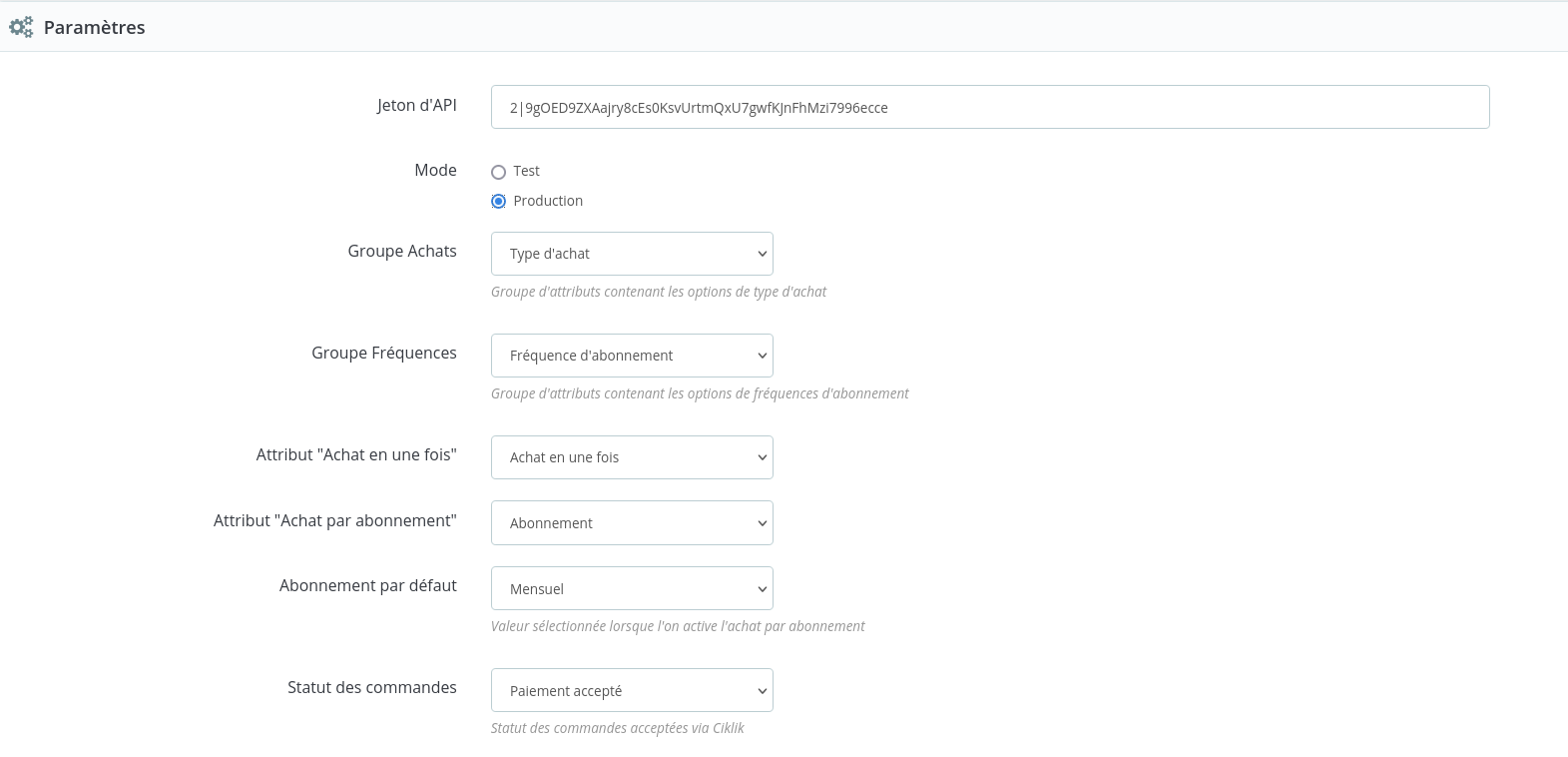
- API Token: enter the Ciklik API key (the one obtained after creating your PrestaShop space in Ciklik)
- Mode: select Production (even if you are working on a pre-production environment)
- Purchase Group: select Purchase Type
- Frequency Group: select Subscription Frequency
Subscription frequencies to apply to products of your choice are already created when the module is installed (Monthly, Every 2 months, Every 3 months). You can add more once the module is installed.
- Order Status: we recommend selecting Remote Payments Accepted
If no order status is available or if it is not available, you can go to the Orders > Order Manager section and verify that the settings below are applied for the order status you choose during module installation:

- Enable debug logs: check No

This section allows you to enable certain module options:
- Commitment Cycle: if you want to prevent a subscriber from canceling their subscription for a given period after subscribing.
- Frequency Modification:
- Next Payment Date Modification:
- Customer Group Assignment:
- Upsell:
The last option “Use Frequency Mode” allows you to use the alternative mode to product variations.
Generate a New API Key
Section titled “Generate a New API Key”A token is provided to you when creating your Ciklik account.
You can, if needed, generate a new token to use the Ciklik module.
To do this, log in to your Ciklik account and click on My Sites at the bottom of the left column, then on the small eye icon (view) next to your site.
This gives you access to its details.
Go to the bottom to the Personal Access Tokens section and click on Create Token.
Name your Token and confirm the action.
