
Connect your WhatsApp Business account to Ciklik
Key points
To send the renewal reminder by WhatsApp, you connect your own WhatsApp Business account to Ciklik, through your own Meta app. Ciklik provides no WhatsApp account and sends nothing from its own. At Meta, you prepare an app, a phone number, a permanent token and a payment method; in Ciklik, you paste four IDs, then copy into your Meta app the webhook address Ciklik gives you. Allow about an hour of setup if you already have a Meta business portfolio, then up to 24 hours of waiting for Meta to approve the message.
What you need
Section titled “What you need”- A Meta Business portfolio where you have full control.
- A Meta app dedicated to the reminders, created by you. It is a free record at Meta, not an application to install.
- A dedicated phone number, which must no longer be used in the WhatsApp or WhatsApp Business app.
- A payment method at Meta: you pay for each delivered message.
- Your privacy policy, your terms of sale and a square icon (requested by Meta to switch to Live mode).
- About one hour of setup if you already have a portfolio, then up to 24 hours for Meta to approve the message.
The path in brief
Section titled “The path in brief”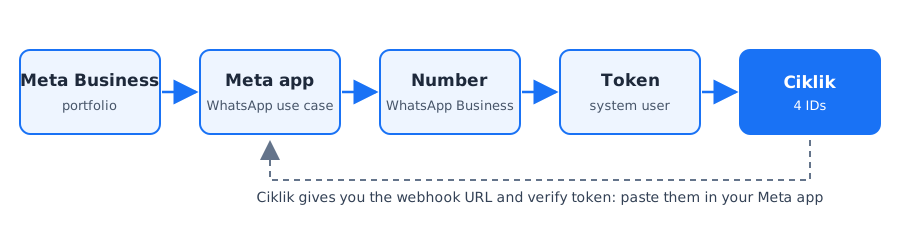
-
Meta Business portfolio. Create it, or use your store’s, on business.facebook.com. Details
-
Meta app. Register as a developer, then create an app with the Connect with customers through WhatsApp use case. Meta guide · Details
-
Number. Link a WhatsApp Business account to the app and add your number. Meta guide · Details
-
Permanent token. Create a system user, give it the app and the WhatsApp account, then generate a token that never expires. Meta guide · Details
-
IDs. Note the WABA ID, the Phone number ID, the app secret and the token. Details
-
Payment method. Add one in WhatsApp Manager, otherwise Meta blocks the sends. WhatsApp Manager · Details
-
Ciklik. On your site record, run Manage the WhatsApp connection, choose Connect and paste the IDs. Details
-
Webhook. Copy the callback URL and the verify token from Ciklik, paste them in your Meta app, then subscribe the fields. Details
-
Live mode. Switch the app to Live. Meta guide · Details
-
Check. Check the WhatsApp block of the Integrations tab of your site record. Details
Then, formatting the message, choosing the channel and informing your customers happen in Ciklik: see Renewal reminders by WhatsApp.
Before you start
Section titled “Before you start”- A dedicated number. The connected number can no longer be used in the WhatsApp or WhatsApp Business app on a phone. A number already used in the app must first be deleted from it. Keeping the app on the same number (“coexistence”) is only possible through a solution provider approved by Meta, which Ciklik is not. Deleting the account from the app erases the conversation history: if you already use your number in the app, rather take another number for the reminders (a second mobile line or an eSIM is enough). It must be able to receive a text message or a call (a mobile is recommended; a landline works by voice call).
- Admin access to your company’s Meta business portfolio (“full control”).
- The addresses of your privacy policy and terms of sale, and a square icon (your logo), requested by Meta to switch the app to Live mode.
- A contact address for your customers. Ciklik only handles STOP replies: your customers’ other replies to the reminder are read by no one. Say in your WhatsApp profile description where to write to you, for example: “This number only sends reminders. To write to us: [your email].”
- Neither App Review nor business verification. Since you use the API for your own business, Meta does not ask for App Review. Business verification is optional (see below).
Words to know
- Meta app: not an app to install, but a free record at Meta that allows sending through the WhatsApp API. Registering as a “developer” is free and does not touch your Facebook page or your ads.
- WABA (WhatsApp Business Account): your WhatsApp Business account at Meta, which your number belongs to.
- System user: a technical account of your portfolio, with no person behind it.
- Token: a technical password that lets Ciklik send on your behalf.
- Webhook: the address where Meta notifies Ciklik (STOP replies, undelivered messages, template approval).
Step-by-step details
Section titled “Step-by-step details”Step 1: your Meta Business portfolio
Section titled “Step 1: your Meta Business portfolio”On business.facebook.com, create a business portfolio, or use your store’s if it already exists: it is often used for Facebook or Instagram ads. The person doing the next steps must have full control of the portfolio.
Step 2: create the Meta app
Section titled “Step 2: create the Meta app”-
Register as a Meta developer if you have not already, on developers.facebook.com, with the Facebook account that manages the portfolio.
-
Open developers.facebook.com/apps and click Create App. The Meta guide to creating an app shows these screens.
-
Enter an app name and your email. The name must not contain “WhatsApp”, “Facebook”, “FB” or any Meta brand, otherwise switching to Live mode will be refused. Example: “My Store Reminders”.
-
Choose the Connect with customers through WhatsApp use case, then Next.
-
Choose your business portfolio (step 1), then Next, review and click Create app.
Step 3: link a WhatsApp Business account and add your number
Section titled “Step 3: link a WhatsApp Business account and add your number”-
In the app dashboard, on the Quickstart page, click Start using the API. The API Setup page opens. The Meta guide to the WhatsApp API describes this page.
-
Choose an existing WhatsApp Business account in the list, or click Create a WhatsApp Business account.
-
Meta creates a test number automatically: do not use it, it cannot write to your customers. Add the store’s number (Add phone number, or add it from the From list) and confirm it with the code received by text message or call. Then check that the From list shows your number. The Meta page on phone numbers details this verification.
-
Enter the display name: the name your customers will see, usually your store’s. If possible, complete the profile (address, website, description, photo).
The display name is reviewed by Meta. It shows in the profile right away, but at the top of the conversation only once verified, which happens automatically when your account moves up a sending tier.
Step 4: system user and permanent token
Section titled “Step 4: system user and permanent token”The token is the “key” that lets Ciklik send messages on your behalf. A system user is a technical account of your portfolio: its token does not depend on a person and does not expire. The Meta documentation on access tokens and the help page on system users complete these steps.
-
Open the business settings: business.facebook.com/latest/settings, Users > System users menu.
-
Click + Add. Name: for example “ciklik”. Role: choose Employee. The Admin role would give access to all the WhatsApp accounts of the portfolio, which is not needed here.
-
Click the system user, then Assign assets:
- Apps: your app, with Manage app under full control;
- WhatsApp accounts: your WhatsApp Business account, with Manage WhatsApp Business accounts under full control.
Confirm with Assign assets. If an asset does not show yet, reload the page after a few minutes.
-
Still on the system user, click Generate token:
- app: yours;
- expiration: Never;
- permissions: tick
whatsapp_business_messagingandwhatsapp_business_management(type “business” in the search to find them). Meta’s procedure addsbusiness_management: you can tick it, Ciklik does not require it.
-
Click Generate token and copy it right away into a password manager: Meta will not show it again. Never send it by email, not even to Ciklik support, who will not ask for it: you paste it into Ciklik yourself. If you lose it, generate a new one.
Step 5: note the IDs
Section titled “Step 5: note the IDs”| ID | Where to find it |
|---|---|
| WhatsApp Business Account ID (WABA ID) | App dashboard > WhatsApp > API Setup, once the account is linked; also in WhatsApp Manager |
| Phone number ID | Same API Setup page, under the number chosen in From. Careful: it is not the phone number itself, it is an ID of about fifteen digits |
| App secret | App dashboard > App settings > Basic, Show button |
| Permanent token | Step 4 |
The app secret lets Ciklik check that the notifications it receives really come from Meta. If you ever reset it, paste it again in Ciklik.
Step 6: payment method at Meta
Section titled “Step 6: payment method at Meta”The merchant pays Meta for their own messages: a payment method must be added to their Meta account, otherwise Meta blocks the sends. This is done in WhatsApp Manager.
Step 7: connect WhatsApp in Ciklik
Section titled “Step 7: connect WhatsApp in Ciklik”-
In Ciklik, go to Settings > Management > Sites and open your site record (eye icon).
-
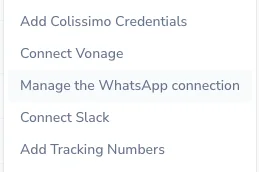
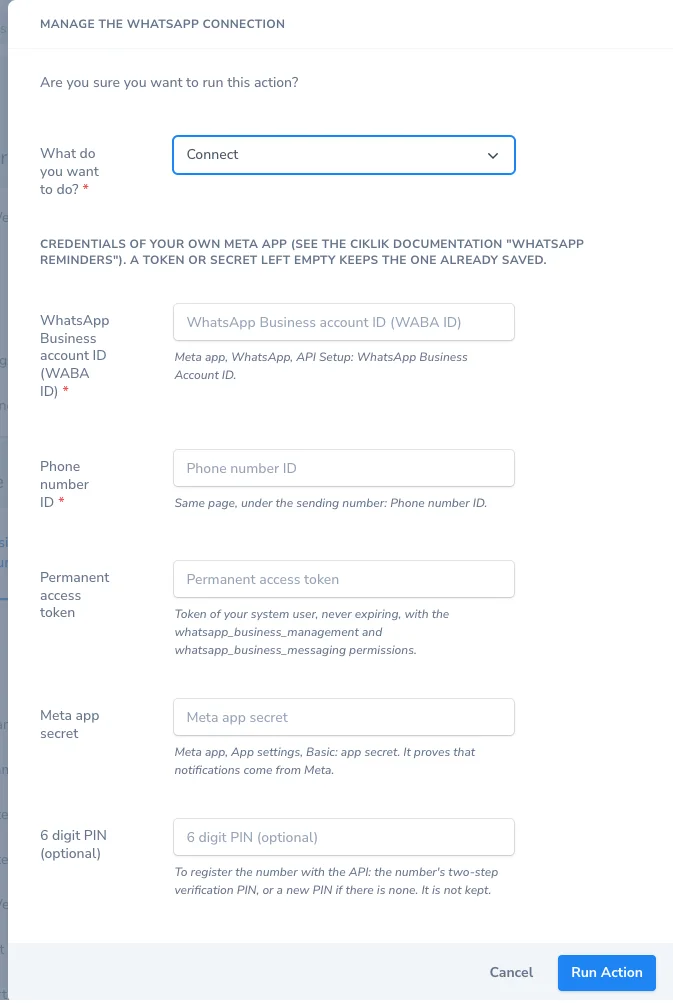
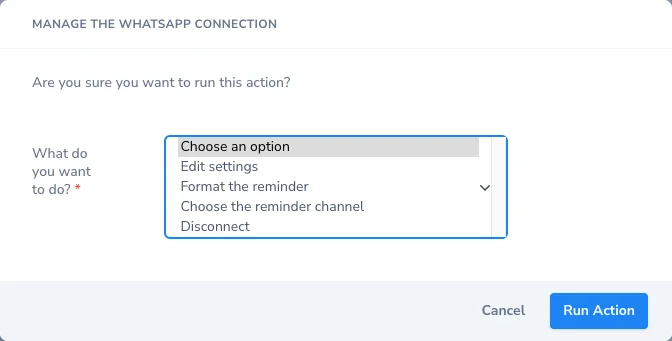
In the record’s actions menu, choose Manage the WhatsApp connection. Every WhatsApp operation goes through this single action: its first field, What do you want to do?, offers Connect while WhatsApp is not connected, then Edit settings, Format the reminder, Choose the reminder channel and Disconnect. The fields of the chosen operation then appear.
Here, Connect is already selected.
-
Fill in the fields:
- WhatsApp Business account ID (WABA ID);
- Phone number ID;
- Permanent access token;
- Meta app secret;
- 6 digit PIN (optional): see below.
-
Confirm. Ciklik checks with Meta that the token works, does not expire and has both WhatsApp permissions, then that the number belongs to the WhatsApp Business account. It then subscribes your app to that account. This automatic subscription is not enough: step 8, which you do yourself, is still required.
The 6 digit PIN, explained
On the first connection, enter it: without registering the number, no message goes out. Meta only sends from a number once it is “registered” for the API, and this registration can only be done through the API, with a 6 digit PIN. For a new number, there is no PIN yet: choose 6 digits and write them down with the token. If the number already has a two-step verification PIN, enter that one. Afterwards, leave the field empty, except after a display name change. Ciklik does not keep it. Enter it on the first connection, and again if Meta approves a new display name (within 14 days). Meta limits registration to 10 attempts per 72 hours.
The token and the app secret are never shown again. To change them, run Manage the WhatsApp connection again and choose Edit settings: the WABA ID and the Phone number ID are prefilled, a token or secret left empty keeps the one already saved.
Step 8: paste the webhook address in your Meta app
Section titled “Step 8: paste the webhook address in your Meta app”The webhook lets Meta notify Ciklik: your customers’ STOP replies, undelivered messages, approval of your message template, your account status. Without it, Ciklik refuses the WhatsApp channel.
-
On your site record in Ciklik, open the Integrations tab and copy, in the WhatsApp block:
- the Callback URL (webhook) to paste in your Meta app;
- the Verify token to paste in your Meta app.
-
In your Meta app dashboard, open Use cases > Customize > Configuration (or WhatsApp > Configuration depending on the app). The Meta documentation on webhooks explains this setting.
-
Paste the URL in Callback URL and the token in Verify token, then click Verify and save.
-
The list of webhook fields appears. Click Subscribe next to each of these fields, with no exception: without them, Ciklik (WhatsApp block of the Integrations tab) does not see your template’s approval, your number’s quality or STOP replies.
The webhook fields to subscribe, one by one
| Field | What it is for |
|---|---|
messages | Required: STOP replies and undelivered messages |
message_template_status_update | Template approved, rejected, paused or disabled |
message_template_quality_update | Template quality |
template_category_update | Template category changed by Meta |
phone_number_quality_update | Number quality |
phone_number_name_update | Display name approved or refused |
account_update | Account restriction or change |
business_capability_update | Sending limit change (optional) |
If Verify and save fails, check that you pasted the full URL and token, with no space, and that WhatsApp is connected in Ciklik (step 7). If you later change WhatsApp Business account or number, run Verify and save again.
Step 9: switch the app to Live mode
Section titled “Step 9: switch the app to Live mode”A new app is in Development mode. Based on field reports (Meta does not say so clearly), real notifications (STOP replies, undelivered messages) only arrive in Live mode. Switch the app to Live with the toggle at the top of the dashboard. Meta’s app modes page explains the difference.
Meta then asks, without App Review, in App settings > Basic: app display name, contact email, privacy policy URL, terms of service URL (your terms of sale), icon, category, and the app’s purpose (“Yourself or your own business”).
Step 10: check that everything is ready
Section titled “Step 10: check that everything is ready”Ciklik has no test send button for WhatsApp. Check the WhatsApp block of the Integrations tab of your site record instead:
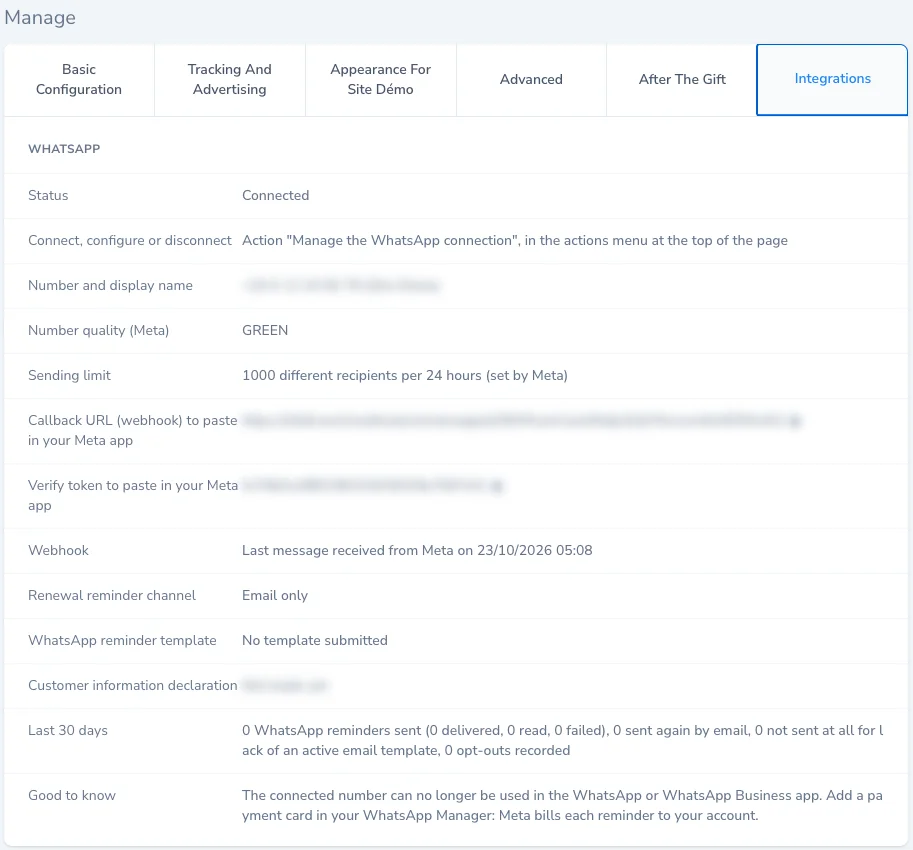
| Line | What you should see |
|---|---|
| Status | Connected |
| Number and display name | Your number and your store’s name |
| Webhook | “URL verified by Meta, no message received yet”, then the date of the last message received from Meta |
| Sending limit | The number of recipients per 24 hours set by Meta |
Then, on a subscription in your name with your mobile (Sales > Subscriptions, view icon), the Check the WhatsApp number action shows which (masked) number the reminder would go to.
To finish, format the reminder, wait for Meta’s approval, inform your customers, then choose the channel.
Sending limits and business verification
Section titled “Sending limits and business verification”- As long as your business is not verified by Meta, you can message 250 different recipients per 24 hours. The limit rises to 2,000 after business verification, or after 2,000 messages delivered to different numbers within 30 days with good quality templates (Meta’s rules). Since the reminder goes 5 days before each renewal, 250 a day is enough for most stores.
- The limit applies to your whole business portfolio, including your other WhatsApp sends. Beyond it, the reminder goes by email.
Connection errors
Section titled “Connection errors”The error messages Ciklik shows and what to do
| Message in Ciklik | What to do |
|---|---|
| This token does not have the expected format. | Copy the whole token, with no space or line break. |
| Meta refuses this token: check it or generate a new one. | The token is wrong or revoked: generate a new one (step 4). |
| This token expires: generate a system user token that never expires. | Generate a new token with the Never expiration. |
| This token lacks the whatsapp_business_management or whatsapp_business_messaging permission. | Generate a new token with both permissions ticked. |
| This app secret does not have the expected format. | Copy the app secret (App settings > Basic), not another ID. |
| A Meta ID contains digits only. | You pasted a phone number or text: take the WABA ID and the Phone number ID from the API Setup page. |
| Meta could not read this WhatsApp Business account… | Wrong WABA ID, or the system user was not given the WhatsApp account (step 4, item 3). |
| This number does not belong to this WhatsApp Business account. | The Phone number ID does not match the WABA ID: take both from the same API Setup page. |
| This WhatsApp Business account or number is already connected to another site. | A number serves a single Ciklik site. Disconnect it from the other site or use another number. |
| The PIN has 6 digits. | Enter exactly 6 digits, or leave the field empty. |
| Warning: the app could not be subscribed to the account… | The connection is saved, but check that the system user has Manage WhatsApp Business accounts under full control, then run Manage the WhatsApp connection again, Edit settings choice. |
| Warning: the number could not be registered with the API… | The PIN does not match the number’s, or the number is still used in the WhatsApp app. Fix it, then run Manage the WhatsApp connection again, Edit settings choice, with the right PIN. |
Later, if the WhatsApp block of the Integrations tab shows “Error: token refused by Meta, paste a new token”, the token was revoked or the system user lost its rights: generate a new token and run Manage the WhatsApp connection again, Edit settings choice, leaving the app secret empty.
Disconnecting WhatsApp
Section titled “Disconnecting WhatsApp”Run Manage the WhatsApp connection from the site record, choose Disconnect and tick I confirm disconnecting WhatsApp: the token and the app secret are erased, reminders go by email again.
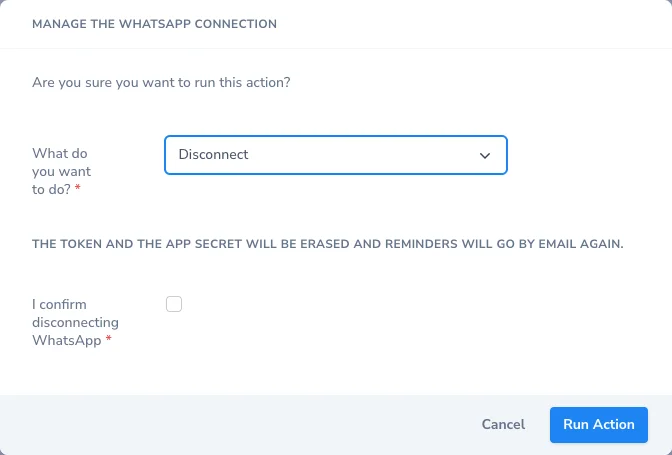
Once disconnected, the only operation offered is Connect again. The renewal reminder channel also goes back to Email only: if you connect WhatsApp again later, choose it again with Choose the reminder channel. To free the number on Meta’s side, also delete it from your WhatsApp Business account in WhatsApp Manager.
Frequently asked questions
Do I need a WhatsApp Business account to send reminders by WhatsApp?
Yes, your own. You create your own Meta app and WhatsApp Business account, then paste in Ciklik the permanent token, the account ID, the phone number ID and the app secret. Meta bills you for each message.
Do I need App Review or business verification at Meta?
No. For your own business, Meta does not ask for App Review. Business verification is optional: it raises the limit of 250 recipients per 24 hours.
Can I keep my number in the WhatsApp Business app?
No. A number connected to the API can no longer be used in the WhatsApp or WhatsApp Business app. Use a number dedicated to the reminders.
How much does a WhatsApp reminder cost?
The merchant pays Meta directly for each delivered message, based on its category (utility) and the recipient's country. Ciklik charges nothing on these sends.
Why does Ciklik refuse my token?
Most often, the token expires (choose the Never expiration) or it lacks one of the whatsapp_business_messaging and whatsapp_business_management permissions. Generate a new token from the system user.