
Renewal reminders by WhatsApp
Key points
Ciklik sends a renewal reminder 5 days before a subscription’s renewal date, at 9 a.m. (Paris time). You can send it by email (the default), by WhatsApp (with the email as a backup when WhatsApp cannot be sent), or both. For WhatsApp, you write the message text yourself and choose whether it carries a cancellation button. The message is sent from your WhatsApp Business account, through your Meta app: Meta bills you for each delivered message. You first connect your WhatsApp Business account, then write the reminder and choose the channel on your site record in Ciklik.
What you need
Section titled “What you need”- A connected WhatsApp Business account in Ciklik, with your Meta app, your number and your permanent token: see Connect your WhatsApp Business account to Ciklik.
- A payment method at Meta: Meta bills you for each delivered message (Ciklik charges nothing on these sends).
- A reminder text that you write in Ciklik. Ciklik submits it to Meta as a template: you do not create one by hand. Meta reviews it within 24 hours at most.
- Information for your customers (terms of sale, privacy policy, message to existing subscribers) given before you enable WhatsApp.
The path in brief
Section titled “The path in brief”-
Connect your WhatsApp Business account: Meta app, number, permanent token, payment method, connection in Ciklik and webhook. Everything is detailed in Connect your WhatsApp Business account to Ciklik.
-
Format the reminder in Ciklik, which submits the message template to Meta, then wait for its approval (up to 24 hours). Details
-
Inform your customers (wording in your terms of sale and privacy policy, message to existing subscribers). Details
-
Choose the channel of the reminder in Ciklik. Details
How does it work?
Section titled “How does it work?”The renewal reminder is sent 5 days before the renewal date of the subscription, at 9 a.m. (Paris time), the same morning for email and WhatsApp. For each site, you choose the channel:
| Channel | What the customer receives |
|---|---|
| Email only (default) | The reminder email, as today. |
| WhatsApp only | The WhatsApp message. When it cannot be sent or does not arrive (no mobile number, customer opted out, failure at Meta…), the customer receives the email instead. |
| Email and WhatsApp | Both. |
The WhatsApp reminder is a utility message (“utility” category at Meta): it announces the renewal and says how to cancel. Its text stays neutral, with no offer or promotion.
The message can end with a “Cancel subscription” button, which is optional. This button opens a cancellation page on your site, with no login: the customer sees a summary of the subscription and confirms with the button “I want to cancel this subscription and no longer be charged”. This page skips the questions and offers of the cancellation flow. The link stays valid until the day before the renewal date, at 11:59 p.m. (UTC); the cancellation link page explains what happens next.
Without the button, your text must tell the customer how to cancel, for example from the customer area. The message then contains no link.
The same cancellation link can be included in the renewal reminder email, with the {*cancel_url*} variable: see Add the cancellation link to the renewal reminder.
Your account, your Meta bill
Section titled “Your account, your Meta bill”Ciklik does not provide a WhatsApp account. You use your own Meta app and your own WhatsApp Business account; Ciklik stores the credentials you entrust to it and sends the reminders on your behalf.
Meta bills you directly for each delivered message, based on the message category (the reminder is “Utility”) and the recipient’s country. Current rates are on Meta’s official rate card. Ciklik charges nothing on these sends.
Format the reminder
Section titled “Format the reminder”To write outside a conversation opened by the customer, WhatsApp only allows message templates approved by Meta. You do not have to create this template yourself in WhatsApp Manager: Ciklik prepares it and submits it to Meta from your text. A template created by hand would not be used.
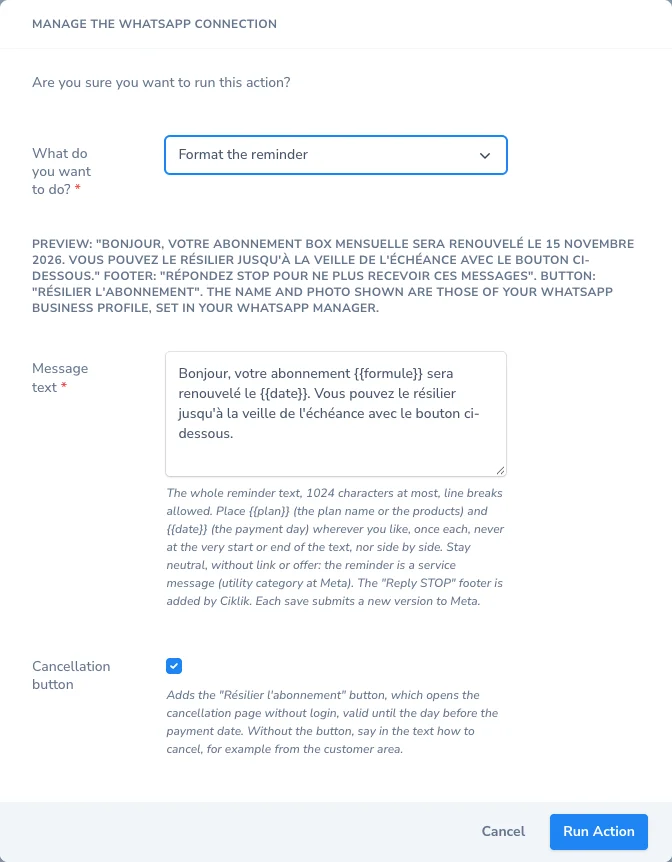
Run the Manage the WhatsApp connection action from your site record (Settings > Management > Sites, eye icon, actions menu) and choose Format the reminder. WhatsApp must be connected. You fill in:
| Part | Content |
|---|---|
| Message text | The whole reminder text, 1,024 characters at most for Meta, line breaks allowed. You place the plan and the date in it (see the tags below). |
| Cancellation button | Ticked by default: adds the “Cancel subscription” button. Unticked: no button. |
| Footer (fixed) | “Reply STOP to stop receiving these messages”, added by Ciklik. You do not type it. |
A preview shows the message as the customer will read it, with sample values. The name and photo shown are those of your WhatsApp Business profile.
The tags
Section titled “The tags”The tags are replaced at each sending by the plan and by the payment date. Write those of your site’s language:
| Site language | Plan | Date |
|---|---|---|
| French | {{formule}} | {{date}} |
| English | {{plan}} | {{date}} |
| German | {{abo}} | {{datum}} |
| Spanish | {{formula}} | {{fecha}} |
Ciklik accepts the tags of all four languages in any text, but prefer those of your language. Each tag can be used only once, and you may place the date before the plan.
Checks
Section titled “Checks”What Ciklik refuses, with examples
Ciklik checks the text before saving it and shows the reason for a refusal. The text is refused if:
- it has fewer than 20 characters outside the tags, or more than 1,024 characters tags included;
- it contains an unknown tag (for example
{{nom}}), or a lone brace; - a tag is repeated, or stuck to another tag (
{{plan}}{{date}}); - a tag is at the very start or the very end of the text;
- there are too many tags for a short text;
- it contains a tab, or more than two line breaks in a row;
- it is not neutral: a link, domain name or email address, a price, a percentage, a discount, a promo code (the words “promo”, “code”, “discount”, “free” and their equivalents in the four languages), the characters % € $ * _ ~ `, a phone number or 6 digits or more in a row;
- it is the default text while the button is unticked: that text announces a button that does not exist.
Examples:
| Text entered | Result | Why |
|---|---|---|
Hello, your subscription {{plan}} will renew on {{date}}. Get 10 % off! | Refused | The percentage and the word “off” make a promotional text. |
{{date}}: your subscription {{plan}} will renew. | Refused | A tag is at the very start of the text. |
Hello, your subscription {{plan}} will renew on {{date}}. You can cancel it with the button below until the day before the payment date. (button unticked) | Refused | The text announces a button that does not exist. |
Hello, your subscription {{plan}} will renew on {{date}}. To cancel, go to your customer area, under My subscription. (button unticked) | Accepted | The text says how to cancel, with no link. |
Hello, your subscription {{plan}} will renew on {{date}}. You can cancel it with the button below until the day before the payment date. (button ticked) | Accepted | The button is there to do it. |
The “STOP” footer is always added by Ciklik: do not write an unsubscribe instruction yourself.
What Ciklik submits to Meta
For your information, you can see these items in WhatsApp Manager, Message templates:
| Item | Value |
|---|---|
| Name | ciklik_renewal_reminder_v1, then _v2, _v3… for each new version |
| Category | Utility |
| Language | Your site’s: French, English, German or Spanish (French for any other language) |
| Variables | {{1}}, {{2}}… in the order your tags appear, filled in by Ciklik at each send (plan or date) |
| Button | If ticked: a link to https://your-domain/abonnement/resiliation/ followed by a variable (the subscription’s cancellation link). Otherwise, no button. |
Do not edit or delete these templates in WhatsApp Manager: always go through the Ciklik action.
- Name and photo. The name and photo the customer sees are those of your WhatsApp Business profile: set them in your WhatsApp Manager. The display name only shows at the top of the conversation once verified by Meta, which happens automatically when your account moves up a sending tier.
- Review by Meta. Each submitted version is reviewed by Meta, which takes up to 24 hours. Its status shows in the Integrations tab, WhatsApp block, WhatsApp reminder template line.
- Changes. Each save creates a new version, submitted to Meta again. The version already approved keeps being used meanwhile, and Nova shows it.
- Domain change. If you have the button and your site’s domain changes, run Manage the WhatsApp connection again, Format the reminder choice, to submit a new version: until it is approved, reminders with the button go by email.
Status and reason in Nova
Section titled “Status and reason in Nova”Template statuses and rejection reasons
The WhatsApp reminder template line of the WhatsApp block (Integrations tab) shows the status of the latest version, then the approved version that is used meanwhile.
| Status shown | What it means |
|---|---|
| approved | Meta has validated the version: it is the one used for reminders. |
| under review at Meta | The review takes up to 24 hours. The previous approved version is used meanwhile. |
| rejected by Meta | The reason is shown next to it (see below). Change the text and save again. |
| not submitted (Meta error) | Meta could not receive the version: run the action again. |
| paused by Meta, disabled by Meta | Meta has suspended the template. While no version is approved, reminders with the button go by email. |
Rejection reasons shown:
- format refused by Meta;
- the text does not match the utility category;
- category judged incorrect by Meta;
- content judged abusive, misleading or promotional by Meta.
If Meta classifies the version in another category, the line shows “Meta classified it as MARKETING: check that your text stays neutral”.
Informing your customers (consent and GDPR)
Section titled “Informing your customers (consent and GDPR)”Meta does not require a checkbox. Your customers must however have been informed, with your shop named, that they may receive these messages, and be able to object. The information can be general (it does not have to name WhatsApp alone); Ciklik’s wording names both email and WhatsApp.
-
Box store: the notice is shown automatically in the Ciklik checkout, under the data notice.
-
PrestaShop store: add this text to your terms of sale and your privacy policy, replacing the shop name:
Service reminders: [your shop name] may send you messages about your subscription, such as the reminder before each renewal, by email or by WhatsApp to the number you give. You can object at any time by contacting the shop or by replying STOP on WhatsApp.
This text, already filled in with your shop name and in your site’s language, is in the Integrations tab, WhatsApp block, Wording to add to your terms of sale and privacy policy line.
-
Existing subscribers: they did not see this notice when they subscribed. Before enabling WhatsApp, inform them, for instance:
Example message to existing subscribers
Subject: your subscription reminders
Hello,
So that a renewal never takes you by surprise, [your shop name] will now send you the reminder before each renewal date by email or by WhatsApp, to the number in your address. This message includes a button to cancel if you wish.
Don’t want these messages on WhatsApp? Reply STOP to the message, or write to us at [contact address].
The [your shop name] team
Processing. For these sends, Meta (WhatsApp) is your processor: you accept Meta’s terms yourself when you create your app and your WhatsApp Business account. Add it to your record of processing activities and to your privacy policy (data may be transferred outside the European Union). Ciklik only keeps the number a WhatsApp reminder is sent to in hashed form (send log, opt-out list).
Choose the reminder channel
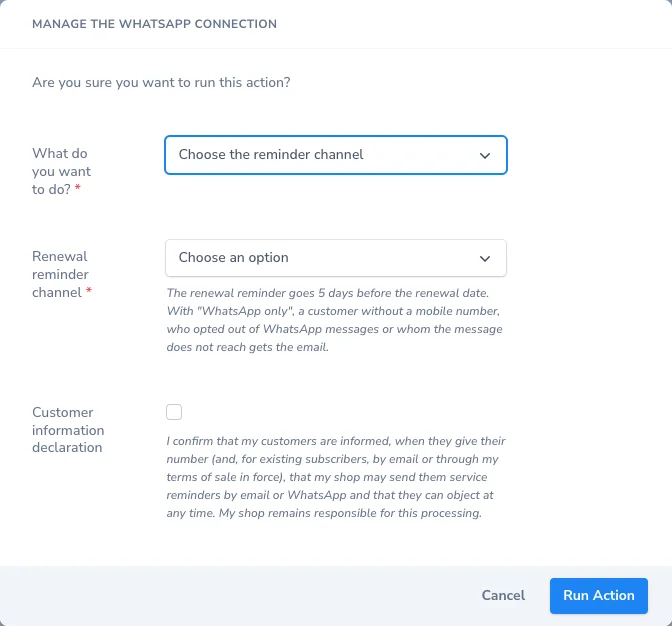
Section titled “Choose the reminder channel”Run the Manage the WhatsApp connection action from your site record (actions menu), choose Choose the reminder channel, then Email only, WhatsApp only (email when WhatsApp cannot be sent) or Email and WhatsApp.
Ciklik refuses WhatsApp while it is not usable, and says why:
- WhatsApp is not connected (or Meta refuses the token);
- the webhook is not configured in your Meta app;
- no WhatsApp template is approved by Meta for the site’s current language and domain;
- the customer information declaration is not made.
The first time you choose a channel with WhatsApp, and again whenever its wording changes, tick the following declaration (mandatory). It belongs to the merchant: a Ciklik administrator cannot make it on your behalf. Its date and author show in the Integrations tab, WhatsApp block, Customer information declaration line.
“I confirm that my customers are informed, when they give their number (and, for existing subscribers, by email or through my terms of sale in force), that my shop may send them service reminders by email or WhatsApp and that they can object at any time. My shop remains responsible for this processing.”
Customer opt-out
Section titled “Customer opt-out”- STOP reply. A customer who replies STOP (or ARRET, DESABONNER, UNSUBSCRIBE and their equivalents; the word must start a short message, accents ignored) to the message is recorded automatically: their next reminders go by email. This requires the
messagesfield subscribed in the webhook (see Connect your WhatsApp Business account). - Opt-out received another way (email, phone): in Sales > Subscriptions, open the subscription (view icon) and run the Stop WhatsApp messages to this customer action.
- Diagnosis: on a subscription, the Check the WhatsApp number action shows which (masked) number the reminder would go to, whether the customer opted out of WhatsApp messages, or why no number is reachable.
Where the customer’s number comes from
Section titled “Where the customer’s number comes from”- Box store: the address phone number the customer entered in the checkout.
- PrestaShop store: Ciklik reads the number from your shop at reminder time, never from a copy: the mobile number of the subscription’s delivery address, otherwise its phone number. This read goes through the Ciklik module’s webservice key, which must keep GET rights on
addressesandcountries.
Landline numbers are discarded: the reminder then goes by email.
Tracking, statuses and troubleshooting
Section titled “Tracking, statuses and troubleshooting”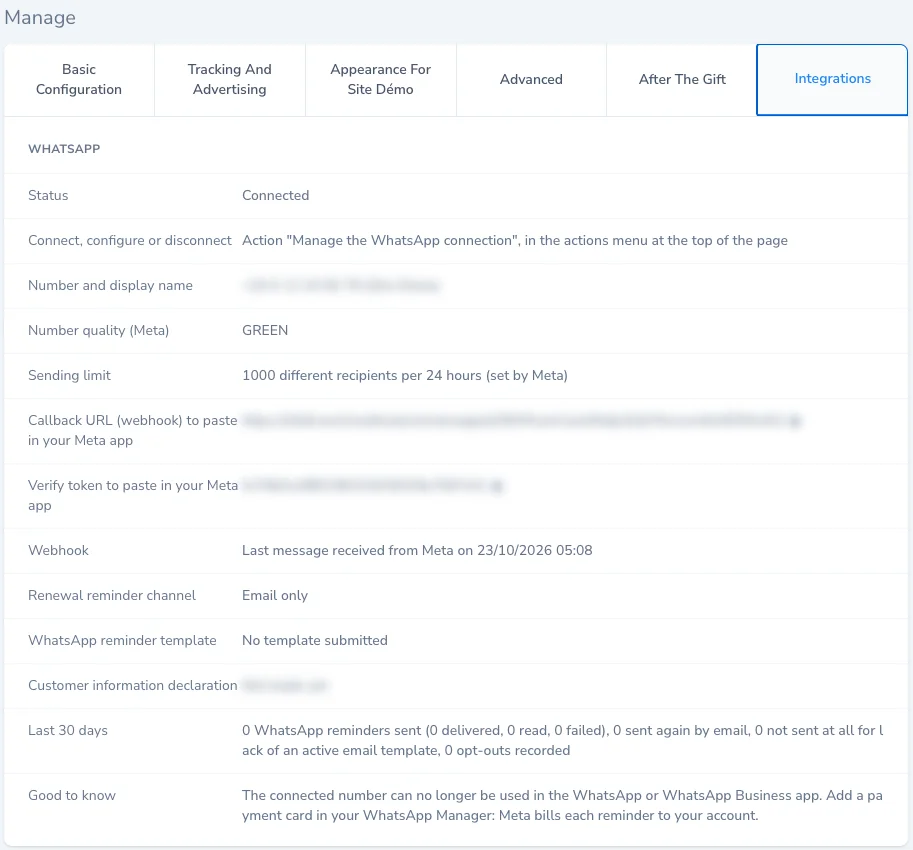
Why a reminder went by email
Section titled “Why a reminder went by email”With “WhatsApp only”, the customer gets the email when WhatsApp cannot be sent or does not arrive. Possible reasons:
The reasons for an email fallback
| Reason | What to know |
|---|---|
| No number in the address | The customer did not give a phone number. |
| Unreadable number | The number could not be interpreted. |
| Landline number | WhatsApp is only sent to a mobile. |
| Unreadable PrestaShop cart for the subscription | PrestaShop only. |
| Address not found in the shop, or unreadable answer from the shop | PrestaShop only: a protection page can return an unreadable answer. |
| Address deleted in the shop (the customer changed it) | PrestaShop only. |
| The shop address does not belong to the subscription’s customer | PrestaShop only. |
| The shop did not answer | PrestaShop only: shop unavailable, or webservice key rights reduced. |
| Customer opted out | The customer replied STOP or you recorded their opt-out. |
| Meta limit reached | The number of recipients allowed per 24 hours is reached. Meta’s limit applies to your whole business portfolio, including your other WhatsApp sends. |
| No cancellation link | Reminder with the button, for a subscription cycle shorter than 4 weeks. Without the button, this reason does not apply. |
| WhatsApp unavailable | Account not connected, token refused, webhook not configured, template not approved or declaration not made. |
| Send refused by Meta | Meta rejected the message. |
| Delivery failed | Meta reports the message was not delivered. |
| Not delivered after 6 hours | No delivery confirmation within 6 hours. Also check that the messages field is subscribed in the webhook. |
With “Email and WhatsApp”, the email has already been sent: no second send happens.
Ciklik does not show the reason reminder by reminder: for a subscription, the Check the WhatsApp number action gives the number-related reasons, and the Last 30 days line of the WhatsApp block (Integrations tab) counts sends, email fallbacks, reminders with no send at all and opt-outs.
Token refused
Section titled “Token refused”The WhatsApp block of the Integrations tab shows “Error: token refused by Meta, paste a new token”. The token was revoked or the system user lost its rights: generate a new token (see Connect your WhatsApp Business account) and run Manage the WhatsApp connection again, Edit settings choice, leaving the app secret empty. The other connection error messages are explained on the same page.
Webhook not configured
Section titled “Webhook not configured”The Webhook line shows “Not configured”. Go through the webhook step again: without a webhook, Ciklik refuses the WhatsApp channel, and neither STOP replies nor failed sends reach it.
If the Last 30 days line reports messages with no news from Meta for more than an hour, the messages field is probably not subscribed in the webhook: STOP replies do not reach us.
Template refused or reclassified as marketing
Section titled “Template refused or reclassified as marketing”- Refused: the line shows “rejected by Meta”, with the reason. Rephrase your text more neutrally (no promotion, no link), then save again.
- Reclassified: the line shows “Meta classified it as MARKETING”. Reminders keep being sent, but at Meta’s marketing rate. Simplify the text and save a new version.
Disconnecting WhatsApp
Section titled “Disconnecting WhatsApp”The Manage the WhatsApp connection action on the site record, Disconnect choice (with the confirmation box to tick), erases the token and the app secret; reminders go by email again. See also Connect your WhatsApp Business account.
Frequently asked questions
Do I need a WhatsApp Business account to send reminders by WhatsApp?
Yes, your own. You create your own Meta app and WhatsApp Business account, then paste in Ciklik the permanent token, the account ID, the phone number ID and the app secret. Meta bills you for each message.
How much does a WhatsApp reminder cost?
You pay Meta directly for each delivered message, based on its category (utility) and the recipient's country. Ciklik charges nothing on these sends.
Can I keep my number in the WhatsApp Business app?
No. A number connected to the API can no longer be used in the WhatsApp or WhatsApp Business app. Use a number dedicated to the reminders.
What does a customer without a mobile number receive?
The reminder email. With "WhatsApp only", the email goes as soon as WhatsApp cannot be sent or is not delivered, provided your reminder email template is enabled.
How does a customer stop WhatsApp messages?
They reply STOP to the message. You can also record an opt-out received by email or phone with the "Stop WhatsApp messages to this customer" action on their subscription.